
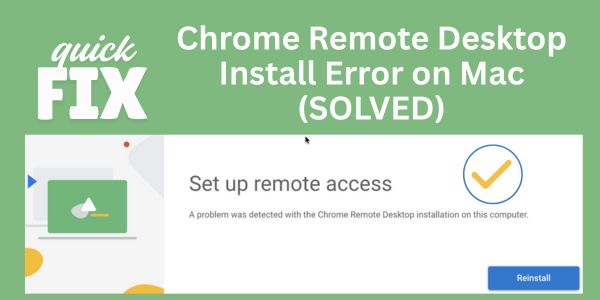
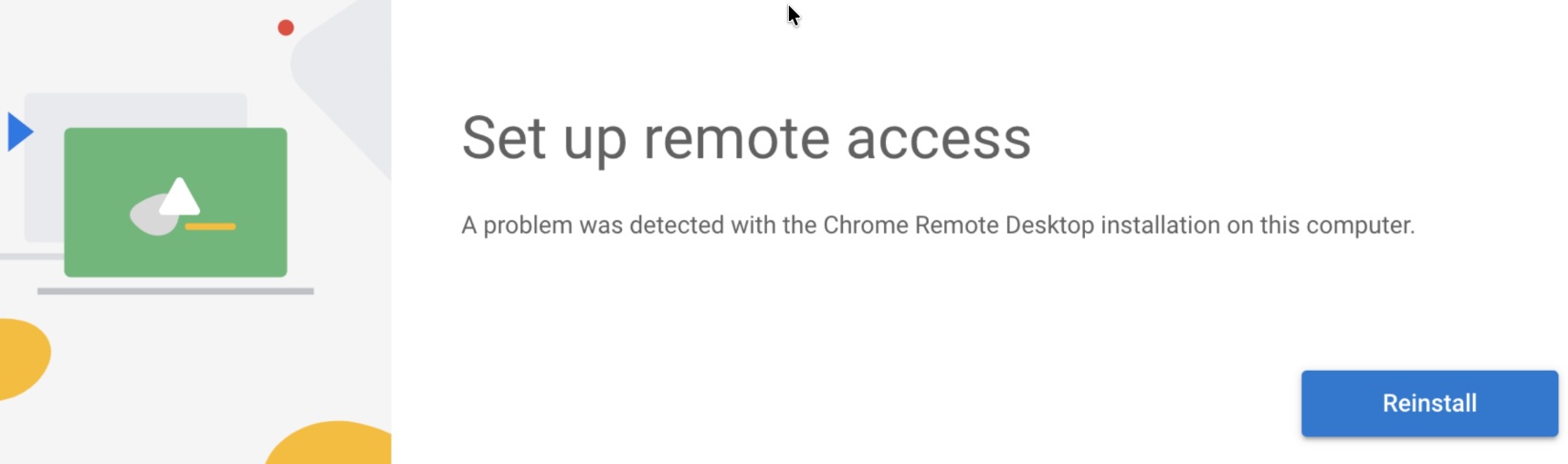
If you see the error message “A problem was detected with the Chrome Remote Desktop installation on this computer”, don’t panic. In many cases, you can fix this fast. For Mac users, the main fix is to turn on background activity for Google in System Settings. In this guide, I’ll walk you through that simple step and then show other checks that can help if the error is still there.
Quick Fix for Mac: Turn On Google Background Activity
On a Mac, this Chrome Remote Desktop installation error often happens because the app is not allowed to run in the background. When that happens, Chrome Remote Desktop cannot finish its setup and shows this warning.
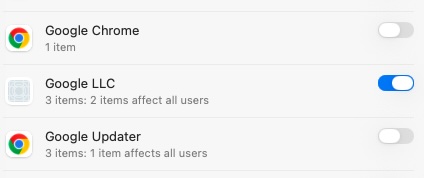
Here is the main solution that works in practice for many Mac users:
- On your Mac, click the Apple logo in the top-left corner.
- Click System Settings.
- In the left sidebar, click Login Items & Extensions.
- Under App Background Activity, look for Google LLC.
- Toggle on the switch for Google LLC.
- Restart your Mac.
- Open Chrome again and try setting up Chrome Remote Desktop one more time.
By turning on background activity for Google LLC, you let Chrome Remote Desktop run the helper tools it needs in the background. This often clears the “A problem was detected” message right away.
Get Custom Email List Building From:
Services: Email List Building Expert
Contact: [email protected] | +447415093145
What Causes This Chrome Remote Desktop Error?
From real-world use, this message on Mac usually means something is blocking the Chrome Remote Desktop host from installing or running as a service.
Common reasons include:
- Background activity for Google LLC is turned off.
- macOS privacy or security settings are stopping the host from running.
- The installation did not finish properly or is only half-done.
- A firewall, antivirus, or network rule is blocking the connection.
Once you know the possible causes, it becomes much easier to fix the problem step by step.
Step-by-Step Fix for Mac Users
Let’s walk through a full fix path for Mac. Start with the simple checks and move to the deeper ones only if needed.
1. Confirm Google LLC Background Activity Is On
First, make sure you followed the main fix fully:
- System Settings > Login Items & Extensions > App Background Activity
- Toggle on Google LLC
If the switch was already on, turn it off, wait a few seconds, then turn it on again and restart your Mac. In practice, this refresh often helps the host service start correctly.
2. Check macOS Privacy & Security Settings
macOS can block apps it does not trust yet. When this happens, you may need to manually allow Chrome Remote Desktop.
- Open System Settings.
- Click Privacy & Security in the left sidebar.
- Scroll down and look for any message saying an app from Google or Chrome Remote Desktop was blocked.
- If you see an Open Anyway or Allow button for Chrome Remote Desktop or Google LLC, click it.
- Run the Chrome Remote Desktop installer again from Chrome.
Apple explains how this security check works in more detail on the official macOS app security help page. It’s helpful to know what messages to look for.
3. Remove and Reinstall Chrome Remote Desktop
If the error keeps coming back, the install might be corrupted. Try a clean reinstall:
- Open Chrome.
- Go to the Chrome Remote Desktop web app (the page you used to set it up).
- Remove any existing remote access setup for this computer.
- On your Mac, open Finder and go to the Applications folder.
- If you see Chrome Remote Desktop Host or a similar app, drag it to the Trash.
- Empty the Trash.
- Restart your Mac.
- Open Chrome again and follow the steps to set up remote access as if it were new.
Make sure you download the host from the official Chrome Remote Desktop site so you get a clean, complete installer.
4. Check Your Network and Firewall
Sometimes the error can appear when the host cannot reach Google’s servers. In practice, this is less common for this specific message, but it’s worth checking if nothing else works.
- Make sure your Wi-Fi or Ethernet connection is working and stable.
- Restart your router and modem if your internet seems slow or unstable.
- If you use a third-party security app or firewall, allow Chrome and Chrome Remote Desktop to connect to the internet.
If you want to learn more about how remote desktop tools depend on network settings, the Cloudflare guide to firewalls explains how these tools can be blocked by strict rules.
Extra Fixes for Windows Users
Even though the main solution here is for Mac, many people see the same error text on Windows. If you’re on Windows and hit this issue, try these basic checks:
- Right-click the Chrome Remote Desktop installer and choose Run as administrator.
- Make sure you’re using Windows 10 or later, since older versions are not supported.
- Temporarily turn off antivirus or firewall software, install Chrome Remote Desktop, then turn them back on.
- Update Google Chrome to the latest version.
If the install still fails, completely remove Chrome Remote Desktop, restart your PC, and install it again from the official site.
Best Practices to Avoid This Error Next Time
Once you fix the problem, you probably don’t want to see it again. Here are some simple habits that help avoid install and host errors in future:
- Keep Chrome updated: Install the latest version regularly.
- Update macOS or Windows: Stay within supported versions for Chrome Remote Desktop.
- Avoid cleaning tools that remove services: Some system cleaners can remove background services that Chrome Remote Desktop needs.
- Check permissions after big updates: After a major macOS update, check Login Items & Extensions again to make sure Google LLC is still allowed under App Background Activity.
In day-to-day use, these small steps keep Chrome Remote Desktop stable and reduce install errors across updates.
Frequently Asked Questions
Why do I see “A problem was detected with the Chrome Remote Desktop installation on this computer” on my Mac?
This message usually means the Chrome Remote Desktop host cannot run correctly. On Mac, the most common reason is that background activity for Google LLC is turned off in Login Items & Extensions.
What is the main fix for Mac users?
The main fix is: go to System Settings > Login Items & Extensions > App Background Activity and toggle on Google LLC. Then restart your Mac and try setting up Chrome Remote Desktop again.
Do I need to reinstall Chrome Remote Desktop every time I see this error?
No. Many times, just turning on background activity for Google LLC and allowing the app in Privacy & Security will fix it. Reinstall only if those steps do not work.
Can firewall or antivirus apps cause this Chrome Remote Desktop error?
Yes. If a firewall or security app blocks the Chrome Remote Desktop host from reaching Google’s servers, the installation or setup can fail. Allow Chrome and Chrome Remote Desktop in those tools and try again.
Does this fix work on Windows too?
The exact Mac setting for Login Items & Extensions does not exist on Windows. However, Windows users can often fix similar errors by running the installer as administrator, turning off strict security tools during install, and making sure Windows 10 or later is installed.
Is Chrome Remote Desktop safe to use?
Chrome Remote Desktop is widely used and, when installed from the official site and protected with strong Google account security, is considered safe for normal remote access tasks.
What if the error still appears after all these steps?
If you tried turning on Google LLC background activity, checked Privacy & Security, reinstalled the host, and tested your network, you may need more advanced help. At that point, check Google’s official Chrome Remote Desktop help pages or contact support with your Mac version and a screenshot of the error.



Leave a Reply